Help · how to use
How to use Remove AI Meta
Remove AI Meta inspects and strips image metadata in your browser: C2PA Content Credentials, AI provenance tags, EXIF, GPS, XMP, IPTC, and known generator text chunks. This page matches the live tool — every step was run with real sample files and captured as screenshots.
One image is free. Pro is $9.99 one-time (unlimited + ZIP). SynthID / TrustMark stay in the pixels. Platform AI labels are not guaranteed gone after a clean After report.
What it does
- Reads the file you drop and lists findings by category (C2PA, AI, GPS, EXIF, XMP, IPTC, other).
- Strips the categories your mode selected, then re-scans the cleaned bytes (After column).
- Downloads a cleaned still. The picture data is not rewritten for a marketing “AI wipe” — metadata leaves; pixels stay.
Supported formats and limits
- Accepted: JPEG, PNG, WebP, HEIC/HEIF, AVIF, GIF, TIFF, BMP (from the file picker
acceptlist and byte sniffing). - Not accepted: video (MP4, MOV, WebM) and PDF — the tool shows the unsupported message from code.
- Size: browser decode can fail around ~100 megapixels; very large files may strip metadata without a preview.
- Quota: 1 free clean per browser (same file can be re-cleaned in-session without spending quota again). Pro unlocks unlimited + folder ZIP.
Where metadata lives (main formats)
| Format | C2PA manifest | EXIF / GPS | AI text / XMP |
|---|---|---|---|
| JPEG | APP11 / JUMBF segments; XMP pointers | APP1 Exif | APP1 XMP; IPTC APP13 |
| PNG | caBX chunk | eXIf | tEXt / iTXt / zTXt (e.g. parameters) |
| WebP | C2PA / caBX-class RIFF chunks | EXIF chunk | XMP chunk |
What each strip mode removes
| Mode | Removes | Keeps (typical) |
|---|---|---|
| AI only (AI provenance) | C2PA/JUMBF, Content Credentials XMP, AI DigitalSourceType, known AI PNG text | Ordinary camera EXIF when it is not AI/C2PA-linked |
| EXIF / GPS (privacy) | GPS, device/camera EXIF, common IPTC (+ C2PA by default) | Pixels only — privacy-first pass |
| All metadata (strip all; home tool default) | All detected EXIF / XMP / IPTC / C2PA categories in the report | Image payload / structural chunks |
Honest SynthID boundary
SynthID / TrustMark / soft-binding watermarks are not ordinary EXIF or C2PA metadata. Remove AI Meta does not claim pixel-watermark removal, “undetectable AI”, or guaranteed platform AI-label erasure. If Instagram still shows AI Info after a clean verify pass, the signal was not (only) file metadata.
HEIC/HEIF, AVIF, GIF, TIFF, BMP: also handled in the browser. HEIC/HEIF and AVIF come back as a clean JPEG (PNG if transparent), TIFF as PNG or a cleaned TIFF, GIF and BMP stay in the same format (GIF keeps its animation). The page tells you which format you got. Video is not supported — still images only.
Strip modes
All metadata
Removes every detected EXIF / XMP / IPTC / C2PA category in the report. Home tool default.
AI only
C2PA/JUMBF, Content Credentials XMP, AI DigitalSourceType, known AI PNG text. Leaves ordinary camera EXIF/GPS.
EXIF / GPS
GPS, device, common EXIF/IPTC. Also drops C2PA so a privacy pass does not leave a provenance manifest.
Steps (with screenshots)
- Dropzone. Open the home tool (or the tool below). Drop an image or use the file picker.
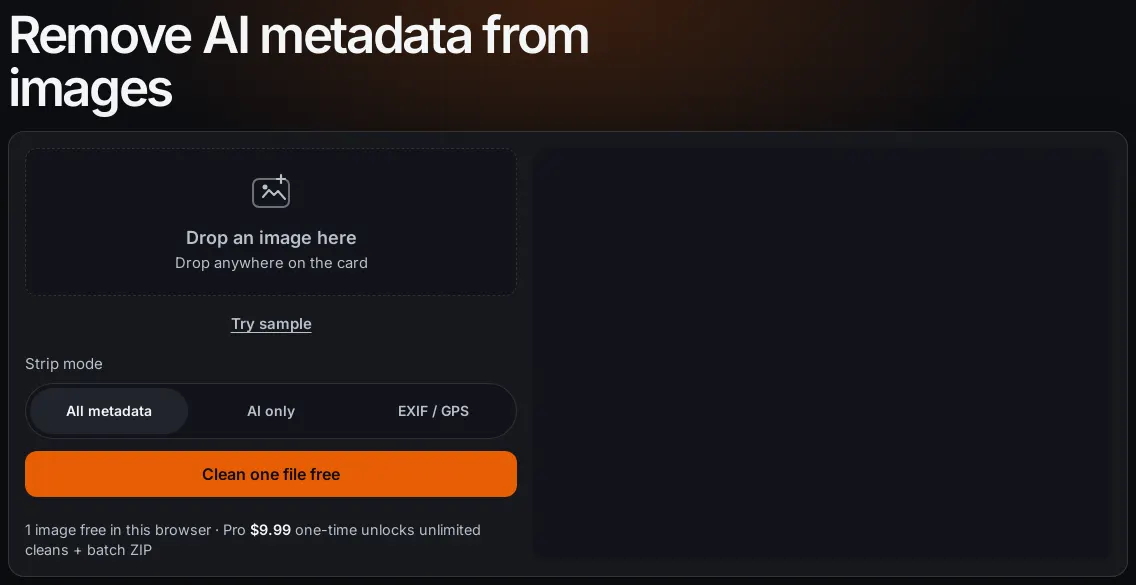
Step 1 — empty tool. Desktop capture of the live dropzone. - Inspect a camera JPEG with EXIF + GPS. We used a real Canon EOS R5 fixture with GPS
37.77472, −122.41917. Inspect only lists findings; the picture is unchanged.
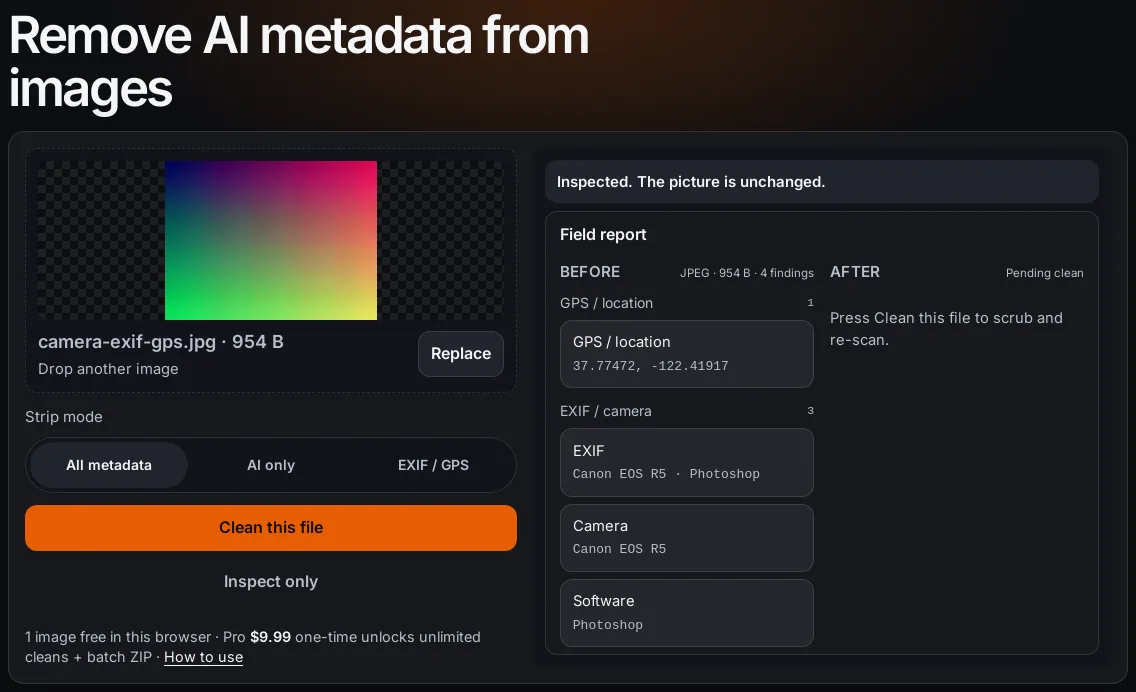
Step 2 — Inspect only on camera-exif-gps.jpg (4 findings: GPS + EXIF). - Choose a mode. Segment control labels: All metadata · AI only · EXIF / GPS. The native
select uses the longer names (Strip all / AI provenance / Privacy EXIF).
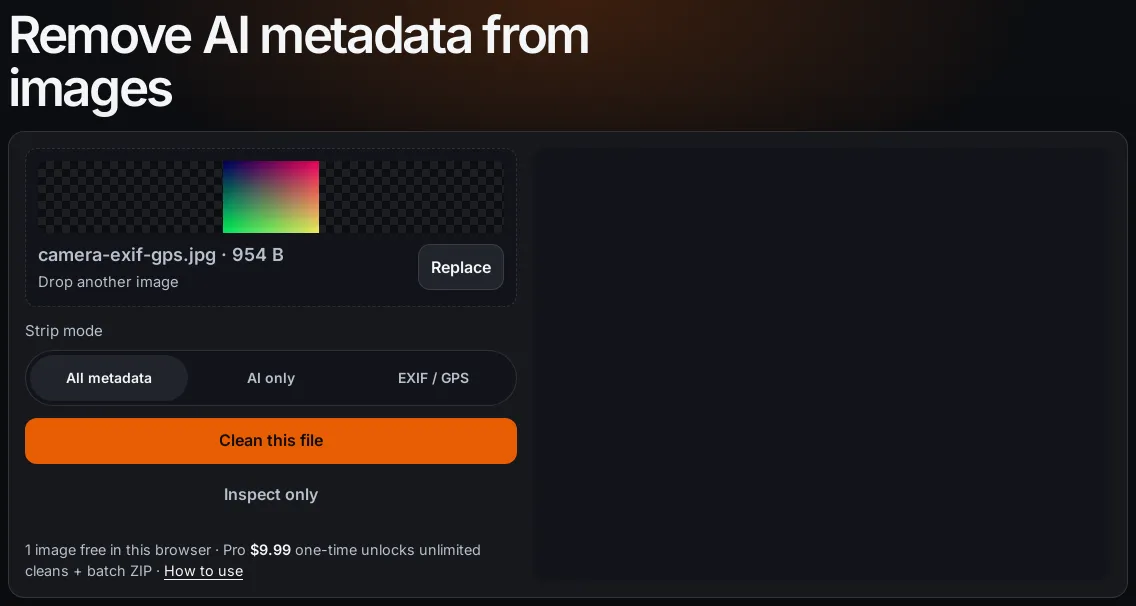
Step 3 — mode set to All metadata before cleaning. - Clean and re-scan. Press Clean this file (or Clean one file free). Status
becomes “Cleaned. N fields removed. Your picture is unchanged.” Download cleaned image appears.
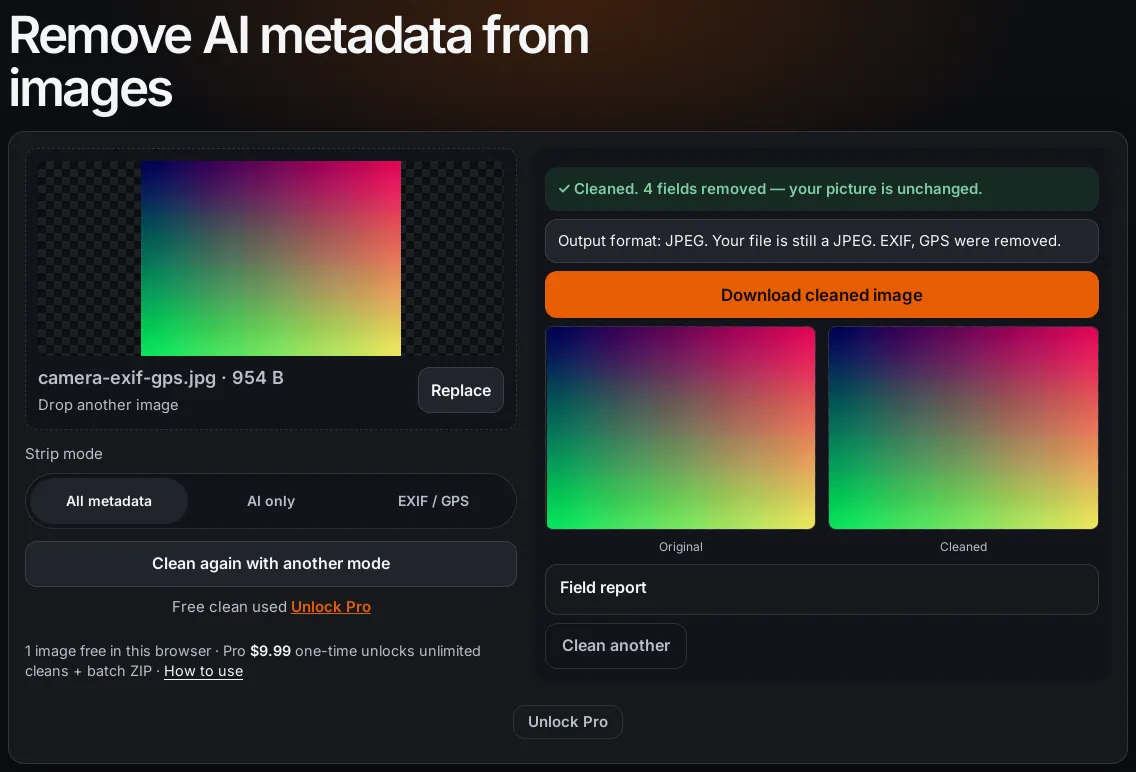
Step 4 — clean + verify on the camera JPEG. Free clean used chip appears. 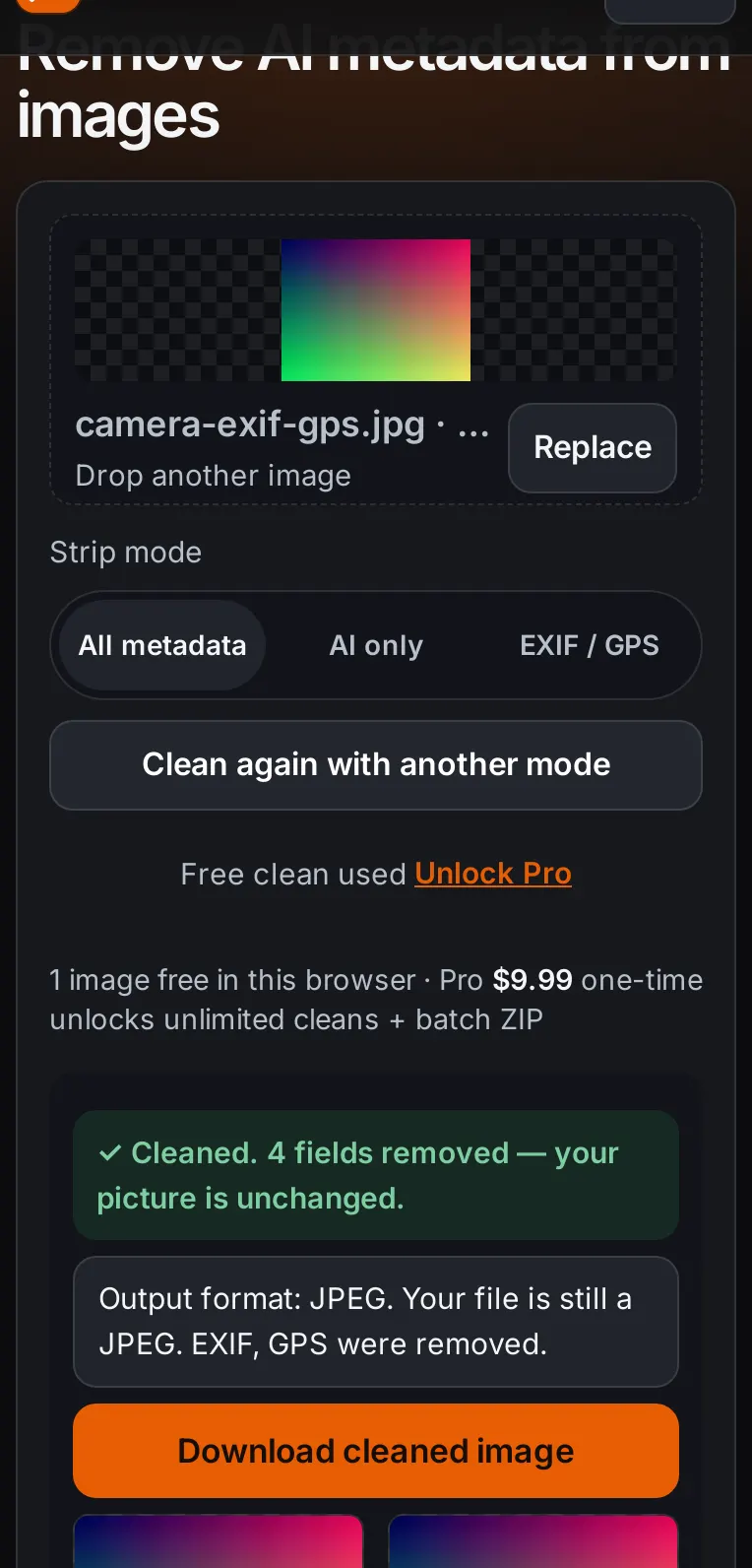
Same step on a 390px phone viewport. - AI PNG parameters. A PNG with Stable Diffusion-style
parametersandDigitalSourceTypetext chunks reports under AI provenance (2 findings).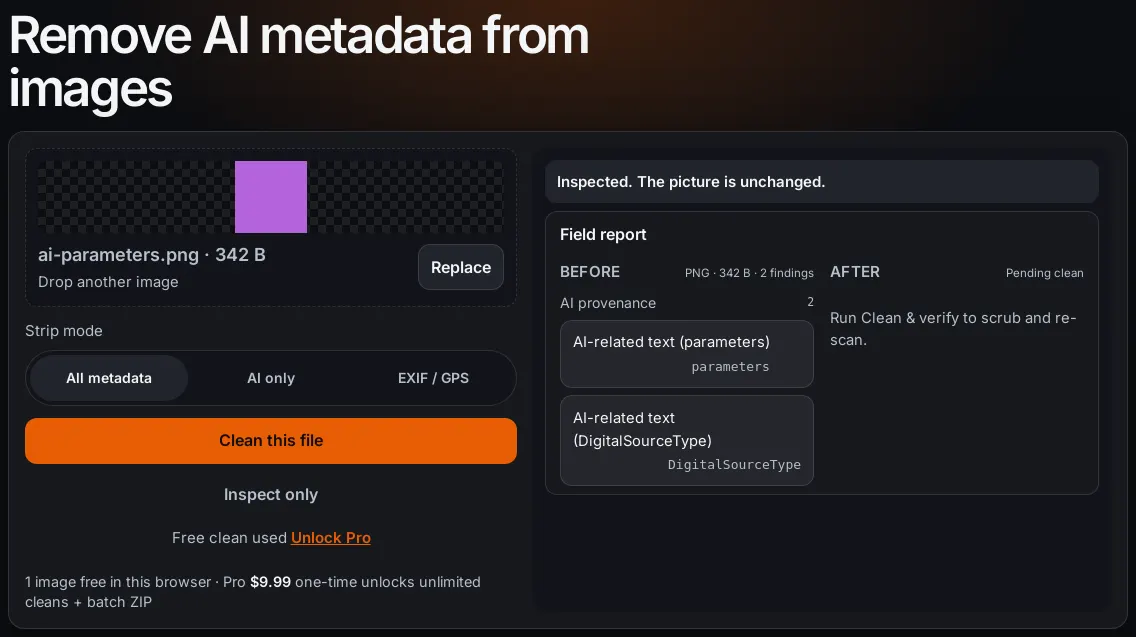
AI provenance findings on ai-parameters.png. - C2PA sample. The public sample JPEG carries C2PA / JUMBF (APP11), a C2PA pointer in XMP,
AI provenance XMP, GPS, and EXIF — six findings before clean.
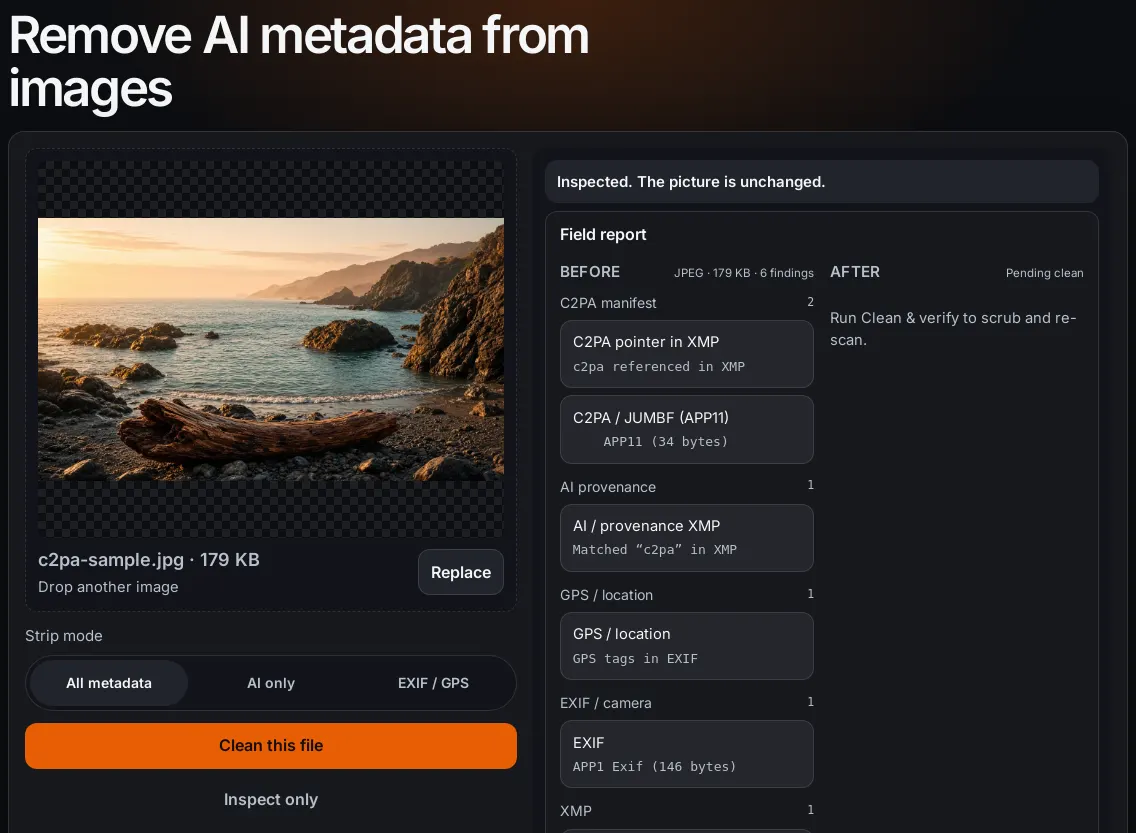
C2PA + AI + GPS + EXIF on the Content Credentials sample. - Paywall (do not pay to follow along). After the free clean, a second file is still cleaned
in your browser and shown as “Your file is clean”, with the download held behind Pro ($9.99, one-time).
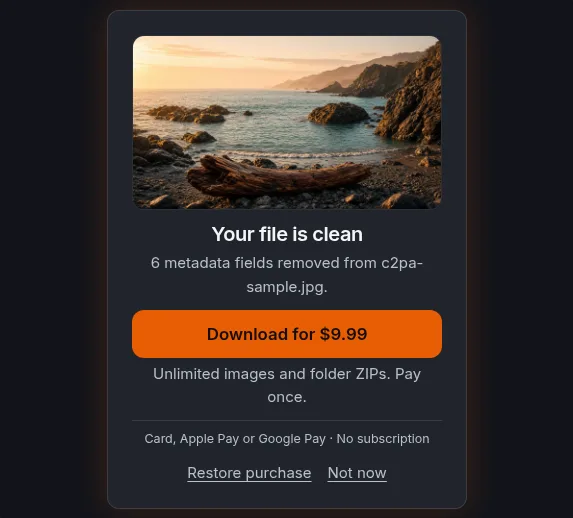
Step 5 — free quota wall. Screenshot only; no purchase required for this guide.
Honest limits (SynthID, LinkedIn, platforms)
- SynthID / TrustMark: not removed. They are not EXIF or C2PA metadata.
- LinkedIn CR icon: file strip only helps the next upload. No live-post delete control.
- Instagram / Facebook / TikTok / Pinterest labels: metadata prep only. Classifiers and disclosures can still label a clean file.
Troubleshooting (messages from the live tool)
- Videos (MP4, MOV, WebM) aren't supported… — still images only; save a frame as JPEG/PNG.
- PDF files aren't supported… — export a page as an image first.
- This file doesn't look like a valid JPEG, PNG or WebP… — corrupt or mislabeled bytes.
- Your browser couldn't open this image… over roughly 100 megapixels… — re-export smaller.
- This HEIC/HEIF file is valid, but your browser couldn't decode it… — try Safari/Chrome desktop or export JPEG.
- Your file is clean with Download for $9.99: the free clean is used. Buy Pro or restore a purchase.
Pricing
1 image free in this browser · Pro $9.99 one-time unlocks unlimited cleans + batch ZIP · no subscription. See Pricing and Restore purchase.
Related intent pages
Try it here
Inspect and clean this image
- 1 Select
- 2 Scrub
- 3 Verify & download
Free clean used
1 image free in this browser · Pro $9.99 one-time unlocks unlimited cleans + batch ZIP · How to use
Cleaning…
Clean every image with Pro
Unlimited images and folder ZIPs. Pay once.
Card, Apple Pay or Google Pay · No subscription
Questions people ask
What formats does Remove AI Meta support?
Still images: JPEG, PNG, WebP, HEIC/HEIF, AVIF, GIF, TIFF, and BMP. HEIC/HEIF and AVIF come back as a clean JPEG (PNG if transparent). TIFF may come back as PNG or a cleaned TIFF. GIF and BMP keep their format. Video (MP4, MOV, WebM) and PDF are not supported — export a still first.
What is the difference between AI only, EXIF / GPS, and All metadata?
AI only removes C2PA/JUMBF, Content Credentials XMP, AI DigitalSourceType, and known AI PNG text, and leaves ordinary camera EXIF including GPS. EXIF / GPS removes GPS, device, and common EXIF/IPTC, and also drops C2PA. All metadata removes every detected category in the report. The home tool opens on All metadata.
Does this remove SynthID or TrustMark?
No. SynthID and TrustMark are soft-binding watermarks in the pixels. This tool only strips ordinary provenance metadata (EXIF, XMP, IPTC, C2PA, known AI text). A clean After report does not force Instagram, Facebook, TikTok, LinkedIn, or Pinterest to drop a label.
Will cleaning remove the LinkedIn Content Credentials (CR) icon?
Only if the icon came from a C2PA manifest in the file you upload next. There is no control on a live LinkedIn post to delete the icon. Clean the still, then upload that file. See the LinkedIn Content Credentials guide for the CR panel versus Instagram AI info.
How much does it cost?
One image is free in this browser. Pro is $9.99 one-time: unlimited cleans and a batch ZIP for a folder. No subscription. Restore a purchase from /restore with the email you used at checkout.
Why did I get “Videos aren’t supported” or a decode error?
MP4, MOV, and WebM are rejected on purpose — this cleaner is still images only. If a JPEG/PNG/WebP will not open, it may be damaged or over roughly 100 megapixels; re-export a smaller copy. HEIC/AVIF/TIFF that the browser cannot decode show a convert-failed message asking you to try another browser or export JPEG/PNG.
Is my image uploaded to a server?
Stripping runs in your browser. The cleaned bytes are produced locally. Billing and restore use the payment API; they do not need your image file.
Page last updated: