Get image location: find where a photo was taken
Free and unlimited · JPEG, HEIC, PNG, WebP or TIFF
The location, capture time and camera will show here.
Reading the photo…
Coordinates
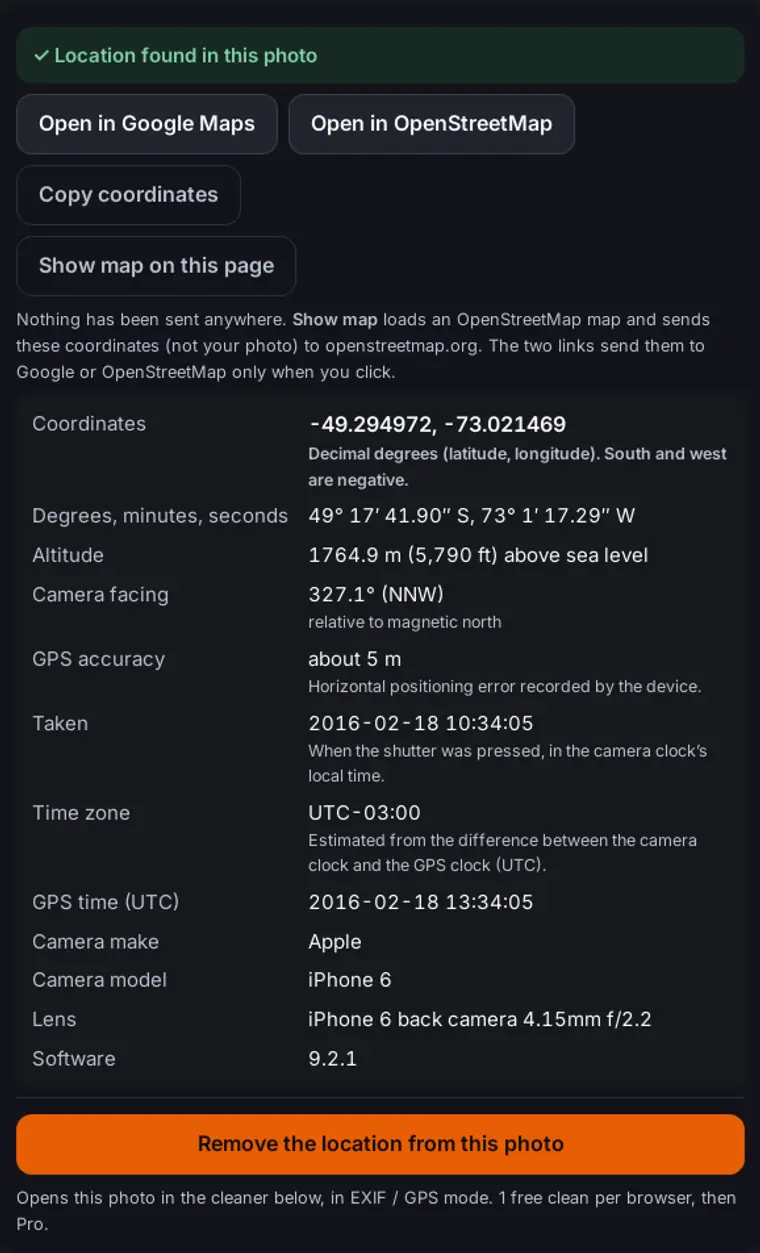
Nothing has been sent anywhere. Show map loads an OpenStreetMap map and sends these coordinates (not your photo) to openstreetmap.org. The two links send them to Google or OpenStreetMap only when you click.
- Screenshots never contain GPS.
- Photos saved from Instagram, Facebook, WhatsApp, X and most messaging apps usually had it removed when they were uploaded or sent.
- The camera may have had location turned off (iPhone: Settings, Privacy & Security, Location Services, Camera; Android: the Camera app's location setting).
- Editing or exporting apps sometimes drop it.
This tool reads the data stored in the file. It does not guess a place from what is in the picture.
Opens this photo in the cleaner below, in EXIF / GPS mode. 1 free clean per browser, then Pro.
Drop a photo to see the GPS location saved in it, with altitude, the direction the camera faced, when it was taken and which camera took it. The file is read in your browser and never uploaded, and no map loads unless you ask for one.
What the finder shows
- Coordinates in decimal degrees (south and west are negative) and in degrees, minutes and seconds.
- Altitude above or below sea level, when the camera saved it.
- Direction: the compass heading the lens was pointing, which many phones save.
- Date and time the photo was taken, with its time zone offset when the file has one.
- Camera make and model, so you can tell a phone photo from one edited later.
- Map links for Google Maps and OpenStreetMap. The map opens only when you click.
The finder reads the location from the photo’s EXIF block, and from its XMP data if there is no EXIF location. It does not look at the picture itself.
Checked against ExifTool
We ran the finder and ExifTool 13.25 (exiftool -n -GPSLatitude -GPSLongitude) on
921 test files: iPhone and Samsung HEIC photos, Pixel, Nothing and iPhone JPEGs, Canon and Nikon camera
files, PNG, WebP, TIFF and AVIF copies, odd encodings we made on purpose, and damaged files. 94 of
them had a readable location, and all 94 matched ExifTool to six decimal places, minus signs
included. The damaged files gave an error message and no made-up coordinates.
| Camera | This page | ExifTool |
|---|---|---|
| iPhone 12 | -33.896614, 151.200119 | -33.896614, 151.200119 |
| iPhone 8 Plus | -34.420842, -58.579369 | -34.420842, -58.579369 |
| Google Pixel 7 | 39.747336, -75.575369 | 39.747336, -75.575369 |
| Nothing Phone (A142) | -34.614244, -58.506739 | -34.614244, -58.506739 |
| Canon EOS 6D | 52.517955, 13.399455 | 52.517955, 13.399455 |
| Nikon D7200 | 40.769457, -111.889140 | 40.769457, -111.889140 |
Public-domain (CC0) photos from Wikimedia Commons, tested on 2026-10-06. Two limits we found: one Nikon file had a broken EXIF value and a valid XMP copy, so the finder shows the XMP location; and one FLIR thermal camera photo keeps its position only in FLIR’s own data block, which this page does not read.
How to find out where a photo was taken
Online, on any device
- Get the original photo file, not a copy saved from a social app or a screenshot.
- Drop it on the card at the top of this page, or tap the card to choose it.
- If it has a location, open it in Google Maps or OpenStreetMap, or click Show map.
On iPhone or iPad
Open the photo in Photos and swipe up, or tap the (i) button. A small map shows where it was taken; tap it to see the place. To browse all your photos by place, open the Places collection. A photo saved from Messages, Safari or a social app may show no map because the file has no location.
On Android
In Google Photos, open the photo and swipe up to see the details and map. Google Photos can also show an estimated location based on your account’s Location History. That estimate is not stored in the file, so the finder will not show it. In Samsung Gallery, open the photo and swipe up, or tap the i button, to see the map.
On a Mac
Open the photo in Preview and choose Tools > Show Location Info, as Apple's Preview guide describes; the GPS section with a map appears only when the file has a location. In the Photos app, select the photo and press Command-I to open the Info window with its map.
On Windows
Right-click the file, choose Properties, open the Details tab and scroll to GPS. Windows shows latitude and longitude as degrees; minutes; seconds without N, S, E or W, so it cannot tell you the hemisphere. The decimal value in the finder includes the minus sign for south and west.
With ExifTool
If you use the command line, exiftool -n -GPSLatitude -GPSLongitude photo.jpg prints the same
decimal numbers as the finder. If you were looking for an online ExifTool, this page reads the location
fields without installing anything. To see every field, use the
image metadata viewer.
Why many photos have no location
- Location was off. If the camera app had no location permission, no GPS was saved. Most cameras without built-in GPS never save one.
- Screenshots have no GPS data. They are made on the screen, not by the camera.
- Social apps remove it. Instagram, Facebook, WhatsApp, Messenger and X remove GPS on upload, so a photo saved from them usually has none.
- Sharing settings. An iPhone can share a photo without its location, and some apps ask before including it.
- Editing and exporting. Some editors and converters write a new file without the original metadata.
If the finder finds a GPS section with no usable coordinates, it says so. This happens when a camera saves the GPS fields before it has a signal.
Can it find the location from the picture itself?
No. A place cannot be read reliably from the pixels. People try landmarks, street signs, shop names or a reverse image search, but that is guesswork and a different method from this tool. If the file has no location data, the finder says so plainly instead of guessing.
Why GPS in a photo is a privacy risk
A phone photo taken at home can carry coordinates precise enough to point to your building. Anyone with the original file can read them, along with the date and time. A photo you send by email, AirDrop, a cloud link, a marketplace listing or a forum may keep that data, even when social apps would have removed it. Check a photo here before you send it, and remove the location if you do not want to share it.
Remove the location from a photo
- 1 Select
- 2 Scrub
- 3 Verify & download
Free clean used
1 free image on this browser.
Cleaning…
One payment. No subscription.
How to remove the location from a photo
After a check, click Remove the location from this photo and the same file goes into the cleaner above in EXIF / GPS mode. That mode removes GPS together with camera EXIF and common IPTC, and keeps the picture and its orientation. HEIC comes back as a JPEG. Drop the cleaned file into the finder again to check it says there is no location.
- iPhone: before sharing, tap Options at the top of the Share sheet and turn off Location. In Photos you can also tap Adjust by the location and choose No Location.
- Android: turn off location tags in your camera app’s settings for new photos. Google Photos has a setting to leave out the location when you share by link, but it does not change the file you keep. More on removing EXIF data on Android.
- Mac: in Preview’s location (GPS) pane, click Remove Location Info, then save the image.
- Windows: in Properties > Details, click Remove Properties and Personal Information. More on Mac and Windows.
Related tools: view all image metadata, remove EXIF and GPS, remove metadata from HEIC, bulk EXIF remover for a folder of photos, ExifTool alternative, and the exif.tools alternative for the online viewer/stripper of the same name. Selling the camera? Read its shutter count from a photo with the camera shutter count checker (Nikon, Sony, Fujifilm, Pentax and Ricoh, Canon).
Photo location questions
Is this photo location finder free?
Yes. Reading the location is free, with no account and no limit. Removing the location uses the cleaner on this page: 1 free clean per browser, shared with the other tools, then Pro.
Does my photo get uploaded?
No. The file is read by your browser and stays on your device. No map loads until you click Show map, and then only the coordinates are sent to OpenStreetMap, not the photo.
Why does it say my photo has no location?
Location services were off when it was taken, the photo is a screenshot, or the file was saved from an app that removes metadata, such as Instagram, Facebook, WhatsApp, X or Messenger. Edited and exported copies sometimes lose it too.
Can it find where a photo was taken without GPS data?
No. It reads the location stored in the file. It does not guess a place from the pixels. Recognising landmarks or using a reverse image search is a different, manual method and is often wrong.
Do Instagram, Facebook and WhatsApp keep the location in photos?
They normally remove GPS and other EXIF data when you upload, so a photo downloaded from them rarely has a location. A location tag added to a post is separate from the file. A WhatsApp photo sent as a document keeps the original file, GPS included.
How accurate are the coordinates?
They are exactly what the camera saved. Phone GPS is usually within a few metres outdoors and less precise indoors. Some phones also save an accuracy radius, which the finder shows when it is present.
Which files does it read?
JPEG, HEIC and HEIF, PNG, WebP, TIFF and AVIF photos. Videos, RAW files and PDFs are not read on this page.
Can I get GPS coordinates from a photo?
Yes, if the camera saved them. Drop the original file into the finder and it shows the latitude and longitude in decimal degrees and in degrees, minutes and seconds, with altitude and direction when they are stored. If the file has no GPS tags, there are no coordinates to get.
How do I find out when a photo was taken?
The finder shows the capture date and time from the photo’s EXIF data (DateTimeOriginal), plus the time zone when the camera recorded one or it can be worked out from the GPS clock. The date shown in a file manager is often just when the file was copied, not when the picture was taken.
Can Google or ChatGPT tell where a photo was taken?
They can guess. Google Lens and AI chatbots estimate a place from what the picture shows, such as landmarks, signs and scenery, and that guess can be wrong. You also have to upload the photo to them. The finder only reads the GPS position stored in the file, on your device.
Can a photo reveal my location?
Yes. A phone photo taken with location on usually stores GPS coordinates accurate to a few metres, so a picture shared as the original file can show where you live or work. Drop it into the finder to check, and remove the location before you send it.
How do I remove the location from a photo?
Click Remove the location from this photo. The same file goes to the cleaner in EXIF / GPS mode, which removes GPS and camera EXIF and keeps the picture. HEIC comes back as a JPEG.
Page last updated: